 Helix
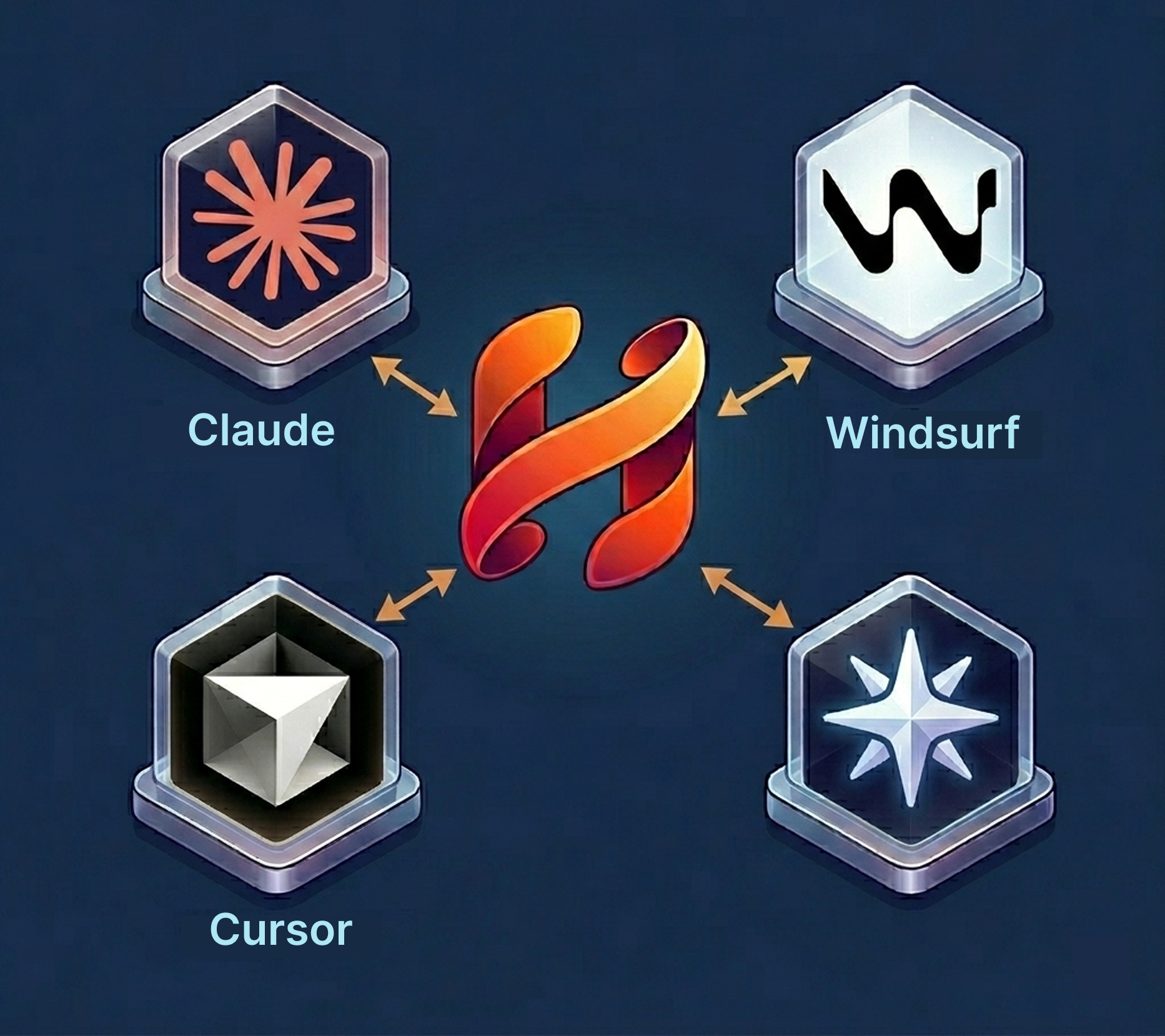
HelixUse Helix from inside Claude, Cursor, Windsurf, and more
The honest problem with most product tools: they live in a tab you forget to open.
Helix takes a one-sentence idea and builds a researched, structured blueprint for it. That's useful when you're actively in Helix. It's much less useful when your real day is happening inside Claude, Cursor, Windsurf, or any of the other AI tools you've made home in. Switch contexts often enough and your blueprint stops growing. A blueprint that stops growing stops being useful.
The Helix MCP server is the fix. Connect it once, and Claude (or any MCP-compatible AI tool) can reach into your Helix workspace directly. Read your canvas. Search your knowledge base. Propose changes. Grow your blueprint as a byproduct of work you were already doing somewhere else.
What MCP is
MCP, the Model Context Protocol, is the standard that lets AI tools talk to external systems. Think of it as a USB port for AI agents. You don't need to understand the protocol. You just need to know that once it's connected, Claude (or your tool of choice) can do Helix things.
What changes about your day
The before-and-after isn't about features. It's about friction.
Before: you have a question. You open Claude. You ask. Claude answers based on what's in its context window. The answer is decent, but it doesn't know what your Market Intelligence agent surfaced two weeks ago. You switch tabs, open Helix, find the canvas, copy something out, paste it into Claude, ask again. The blueprint you built in Helix and the work you're doing in Claude live in separate worlds. Half of what Helix knows about your product never makes it into the answer.
After: you have a question. You ask. Claude reads your Helix canvas, finds the relevant section, and answers using what's actually in your blueprint. Or, if you're writing code in Cursor, it pulls the latest product spec from your canvas and builds the component to match. Or, if you're drafting positioning copy, it reads what your specialist agents recommended last week and writes positioning that's consistent with the thinking you've already done.
The blueprint stops being a thing you have to remember to update. It updates itself, alongside the work.
A few moments that justify the setup
The use cases that pay back the five-minute install:
"Write the thing I'm about to write anyway, but with my context loaded." You're drafting investor outreach in Claude. "Read my Helix canvas and draft three pre-seed emails based on what we know about the market." Claude reads, drafts, and if you say so, creates new nodes on the canvas under a "GTM Outreach" group. You stayed in Claude. Your blueprint grew anyway.
"Find that thing my advisor said three weeks ago." You remember someone gave you good pricing advice. You can't find the doc. "Search my Helix docs for anything about anchoring." Claude searches the full text of your knowledge base, surfaces the right doc, pulls the quote, and drops it into your conversation.
"Mark this part of the blueprint done." You finished a competitive landscape push. The seven nodes are on your canvas. "Link those to the Competitive Landscape blueprint item and mark it addressed." Claude does it. Your blueprint advances without you opening the dashboard.
The pattern isn't that Helix becomes a better Helix. It's that Helix becomes context your other AI tools can reach.
Setting it up
You'll need a Helix API key. Go to Settings → Integrations in your dashboard and create one. The key gives an AI tool permission to read and write to your Helix workspace, scoped to the product the key was minted in. Keep it somewhere safe.
The setup itself is the same shape in every tool. You drop a small JSON block into the right config file:
{
  "mcpServers": {
    "helix": {
      "command": "npx",
      "args": ["@helixcanvas/mcp@latest"],
      "env": { "HELIX_API_KEY": "<paste your key here>" }
    }
  }
}
Where the config file lives depends on your tool:
- Claude Desktop: Settings → Developer → Edit Config (opens
claude_desktop_config.json) - Claude Code: one-line install.
claude mcp add helix -e HELIX_API_KEY=your-key -- npx @helixcanvas/mcp@latest - Cursor:
.cursor/mcp.jsonin your project root (or globally) - Windsurf, VS Code, and other MCP clients: their MCP servers config, same JSON shape
Save, restart the tool, and ask "what canvases do I have in Helix?" If the tool calls Helix to answer, you're connected.
Two things worth knowing: API keys require a Professional plan, and each key is scoped to one Helix product. If you have multiple products, mint a key per product and add multiple entries to your config.
When MCP is the right tool
Use it when your day is happening somewhere other than Helix, and you want the blueprint to grow alongside that day. Use it when you're a technical founder comfortable editing a config file once.
Stick to the Helix UI when you're in deep-thinking mode and want the visual canvas, when you're presenting the blueprint to someone, or when you're new to Helix and still building habits with the specialists.
Most founders end up using both. The UI for thinking. The MCP for working alongside.
Set it up once, and Helix stops being a tab you forget to open. It becomes context your AI tools can reach.